Quick clone
Start directly from a reference video when you want a fast route into a new variation.
A reference video is a starting point. Choose how much to carry forward: the format, a covered figure, the motion, or the depth of the scene. Then build your next version in MaxDay.
ONE SOURCE. FOUR STARTING POINTS.
Cover the figure with a mosaic or blur treatment before continuing your workflow. Compare both treatments on the same source video.
Real MaxDay example · 10-second sourceA FORMAT YOU LIKE. A NEW DIRECTION.
Choose the reference that fits the job, then keep building in the same workspace.
Start directly from a reference video when you want a fast route into a new variation.
Mask or blur the figure before an inpaint step in your workflow.
Extract a simplified motion video so you can work from the movement of the figure.
Extract a depth reference to carry the scene’s spatial structure into your next step.
PART OF YOUR WORKFLOW
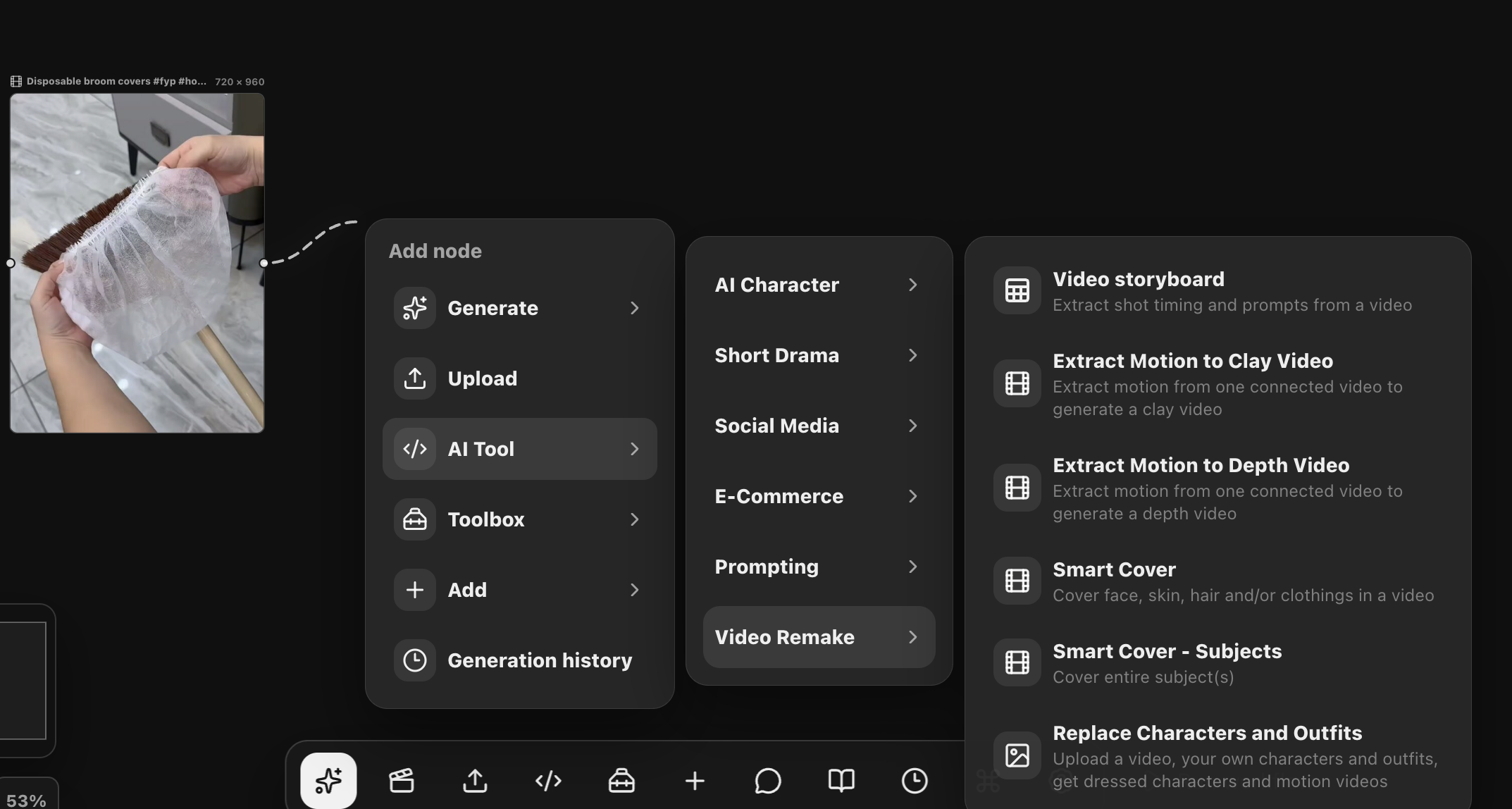
Bring the source into a workflow, choose a Video Remake tool, and connect the result to the next step in your campaign.
Use your own clip or bring a reference into your project with Content Scout.
Quick clone, cover a figure, or extract a clay or depth reference.
Connect the result to the rest of your workflow, try variations, and review your output.
A FEW MORE DETAILS
The comparison shows the supplied original video alongside actual mosaic, blur, and clay outputs. Quick clone and Depth Map explain the other available approaches; the workspace screenshot shows the depth extraction option.
Yes. Use Content Scout or the Video Downloader to bring a supported video link into MaxDay, then use it as the starting point for your workflow.
Yes. The remake tools work inside the MaxDay canvas so you can connect references, prompts, and generation steps in one project.
MAKE IT PART OF YOUR NEXT CAMPAIGN